
Configure in Azure
Step 1: Register your app:
- Go to https://portal.azure.com
- Navigate to: App registrations → New registration
- Set a name, choose "Accounts in this organizational directory only", and register
- Save Application (Client) ID and Directory (Tenant) ID
Step 2: Create a Client Secret
-
In your app registration, go to: Certificates & secrets → New client secret
-
Add a description and expiration period
- Click Add and copy the secret value immediately. This will only be presented to you once.
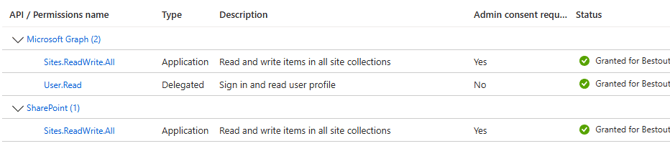
Step 3: Configure API Permissions
Configure in PM3
-
Navigate to Admin > General
-
Scroll to SharePoint Integration
-
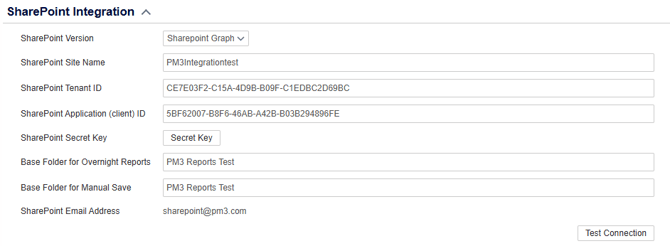
Select "Sharepoint Graph" from the "SharePoint Version" dropdown
- Enter the details of your new Azure App registration
-
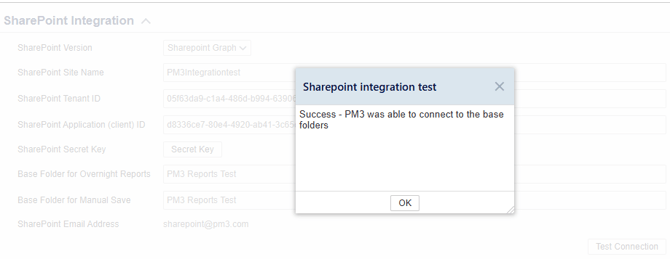
Hit "Test Connection" to check that we can connect to SharePoint and access the Base Folder
Your documents will now be uploaded to the base folder when requested