
Summary
PM3Time Release 10.2 introduces a new feature for PM3Time to the Timesheet experience: a Timer on PM3Time, that allows users to track their time on tasks with accuracy and flexibility. This real-time timer integrates smoothly with the existing Timesheet interface, adding support for session persistence, enforcing one active task at a time, and applying admin-defined cutoff rules.
New settings have also been introduced for Admin users to manage and configure the behavior of the timer across their company, including time format preferences and auto-stop rules.
Major Functionality
Timer on PM3Time - #25005
This release introduces a dynamic timer capability for tracking task durations directly from the Timesheet screen. The new functionality consists of enhancements for both end users and administrators:
User Experience – Timesheet Enhancements
A new "Timer" column has been added between the "Task Name" and day columns on the Timesheet page. Each row in the Timer column contains a Start/Stop button or icon that allows users to begin or end time tracking on that task.
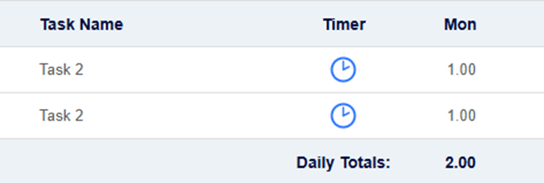
When a user starts a timer a real-time count-up timer appears in the top-right corner of the Timesheet page, a dynamic animation icon is shown to visually indicate the timer is running (both in the header and on the active task row).
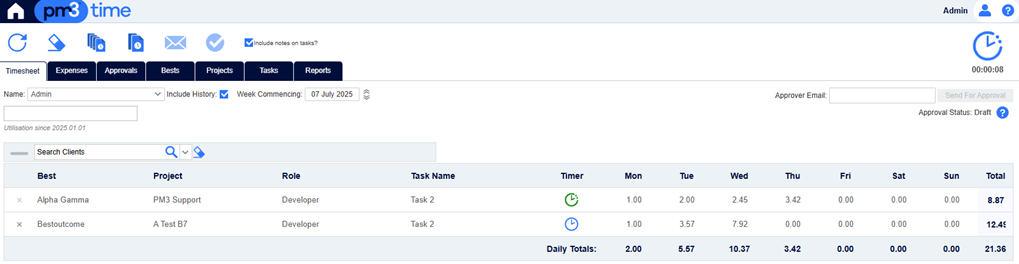
The timer persists across sessions—closing or refreshing the browser will not interrupt it.
When a user stops a timer a confirmation prompt appears, e.g. “Your recorded time is paused on? Press Ok to save the time or Cancel to resume the timer”.
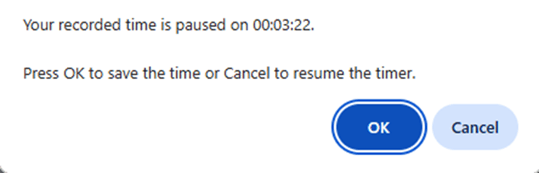
If the user selects:
- [Yes]: The time is automatically added to the selected task, converted to decimal format (hours/days unit) according to admin settings.
- [No]: The timer value remains visible in the top right corner and the timer goes on.
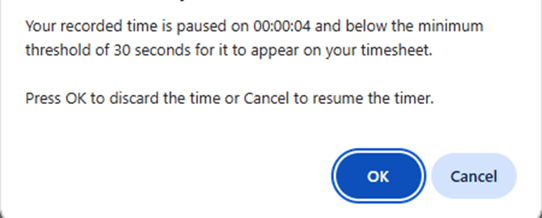
If the recorded time is too short to be added to the timesheet, a different pop-up will notify the user accordingly: “Your recorded time is paused on 00:00:04 and below the minimum threshold of 30 seconds for it to appear on your timesheet. Pres OK to discard the time or Cancel to resume the timer".
Users may override or adjust a timer’s recorded value manually if corrections are needed. Only one timer can be active at a time. If a user attempts to start a timer on a new task while another is running the system prompts the user to either stop and record the active timer or cancel the new start action.
Session Management and Timer Persistence
Timers continue running in the background even if the user closes or refreshes the browser, logs out or loses internet connection. Upon return, the elapsed time is accurately recalculated and displayed, this ensures uninterrupted time tracking across sessions and supports remote and on-the-go users.
Automatic Timer Stop and Cutoff Handling
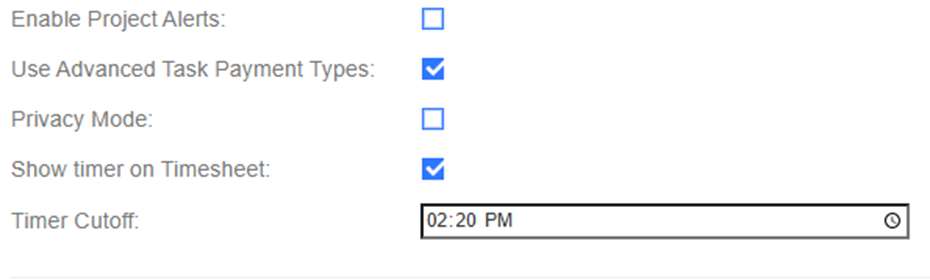
Admins can define a Timer Cutoff Time (e.g., 5:30 PM), after which running timers will be automatically stopped to prevent incorrect long durations. If a timer is started after hours, it is permitted to run up to 24 hours, but will still automatically stop at the next day's cutoff time (e.g., 5:30 PM the following day). Users can override the system-stopped timer values if corrections are necessary.
Admin Panel Enhancements
New configuration options have been added to the Admin panel. Admins can toggle the timer functionality on or off for the subscriber.
- When disabled, the Timer column is hidden entirely from all users.
- When enabled, timer is only shown for the current week to avoid confusion with past or future entries.
If the timer is disabled by the Admin while users have active timers running, all such timers are automatically stopped. The recorded times are saved up to the point of shutdown to ensure no data is lost, and users can adjust the saved values if needed.
A new field allows Admins to define cutoff times and apply validation for time entries. This prevents excessively long timer sessions and maintains data accuracy.
Known Limitations
- The timer cannot be started on tasks in submitted or approved weeks.
- Only one timer can be active at any given time.
Technical Improvements
Upcoming Retirement of Legacy PM3Time Login URL – Action Required
In July 2025, BestOutcome introduced a new organisation specific login structure for PM3Time using the pm3time.com domain.
Instead of accessing PM3Time via:
https://pm3time.bestoutcome.com
and entering a Company Code on the login screen,
users now access PM3Time via their dedicated organisation URL, for example:
https://yourorganisation.pm3time.com
The previous Company Code now forms part of the URL.
Retirement of Legacy Login – 31 July 2026
Since July 2025, both login methods have operated in parallel.
From 31 July 2026, the legacy login pagehttps://pm3time.bestoutcome.com
will be permanently retired.
After this date, all users must access PM3Time via their organisation specific pm3time.com URL. This applies to:
-
Username and password login
-
Single Sign On
-
PM3Time BI access
Action Required
All customers should:
-
Begin using the new organisation specific URL immediately
-
Update any saved browser bookmarks
-
Communicate the change to end users
-
Update any integrations or reporting tools that connect to PM3Time BI
For PM3Time BI users, the DataMart URL will follow the same structure, for example:
https://yourorganisation.pm3time.com/datamart
If you require confirmation of your organisation specific URL or support updating integrations, please contact the BestOutcome support team.
#27983 – Replace pdf help files and redirect to support.bestoutcome.com
#28000 – When user session expires display an alert. Replace favicon icon.
Bug Fixes
#26679 – User is not able to change password second time because of incorrect security question displayed.
#27184 – Included parameter for Project and Task for Timesheets Not Submitted report as the report was not filtering.
#27630 – PM3Time displays error when session times-out.
#27473 – User not found after registration and the email link is invalid.